Parsing Painted Lines and Taxiway Lights from apt.dat
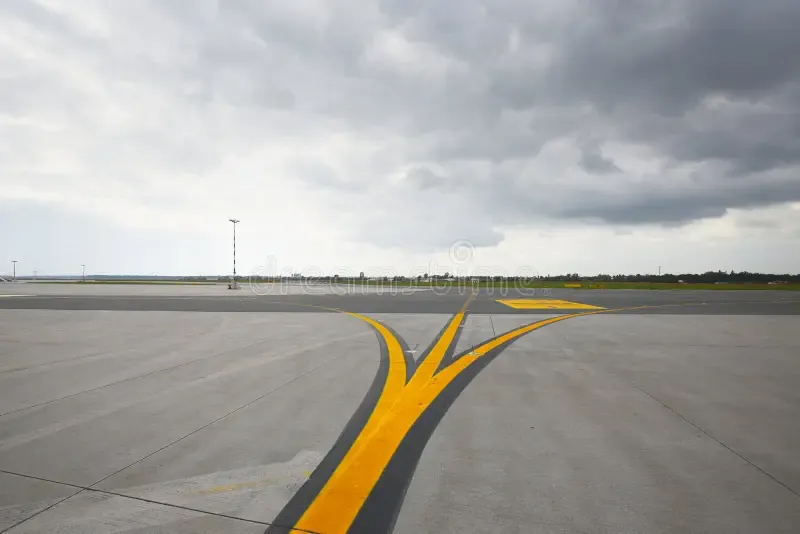
[!ABSTRACT] TL;DR Linear features (row code 120) are painted taxiway markings and embedded lights. They use the same bezier node system as pavements but produce stroked paths instead of filled polygons. Each node carries a line type that styles the segment starting at that node. The catch: at sharp corners (split beziers), skipping coordinates loses type information and makes segments invisible.
What are linear features?
Walk around any airport and you’ll see paint on the ground. Yellow centerlines guide aircraft along taxiways. Hold short bars tell pilots where to stop before a runway. ILS critical area boundaries mark zones where vehicles must stay clear during instrument approaches. Blue edge lights line the taxiway borders at night.
These are not filled shapes. They are stroked paths — lines painted on the surface, or lights embedded into it.
X-Plane calls them linear features and stores them under row code 120:
120 Taxiway A centerline
111 47.464 -122.311 1 0
111 47.465 -122.311 1 0
112 47.466 -122.310 47.466 -122.311 4 102
115 47.467 -122.309 4 102
The format looks similar to pavements: a header line, then a sequence of nodes defining the path. But instead of closing into a polygon, it ends with 115 or 116 (open path terminator). And each node carries extra data — the line type and light type for the segment that follows it.
| Pavements (110) | Linear features (120) | |
|---|---|---|
| Geometry | Filled polygon | Stroked path |
| Terminates with | 113/114 (close ring) | 115/116 (end path) |
| Node extra data | Optional line/light types | Line type + light type |
| Result | Textured surface | Painted line or lights |
The bezier curve system is identical. Same node codes, same control point mirroring. If you can parse pavements, you already have most of the work done. See parsing apt.dat geometry for the full breakdown of bezier math and the four connection types.
The node format
Nodes use the same 111–116 row codes as pavements, with trailing fields for style:
111 latitude longitude [line_type] [light_type]
112 latitude longitude ctrl_lat ctrl_lon [line_type] [light_type]
Both line_type and light_type are optional. When omitted, they default to 0.
There is a gotcha with single trailing values. Some apt.dat entries only provide one number after the coordinates. Is 111 47.464 -122.311 102 a line type of 102 or a light type of 102? The answer comes from the value ranges: line types max out at 92, light types start at 101. If the single value is >= 100, it is a light type.
Here is the disambiguation from the parser:
// From pathParser.ts — disambiguating single trailing value
let nodeLineType = 0;
let nodeLightType = 0;
if (tokens.length > 4) {
  // Both values present
  nodeLineType = parseInt(tokens[3]);
  nodeLightType = parseInt(tokens[4]);
} else if (tokens.length > 3) {
  // Single value: >= 100 means light type, otherwise line type
  const value = parseInt(tokens[3]);
  if (value >= 100) {
    nodeLightType = value;
  } else {
    nodeLineType = value;
  }
}
This works because the two ranges don’t overlap. The spec doesn’t explicitly call this out, but it is the only interpretation that produces correct results.
Line type reference
The line type determines what gets painted on the ground:
| Code | Appearance |
|---|---|
| 0 | Nothing (transparent) |
| 1 | Solid yellow |
| 2 | Broken yellow |
| 3 | Double solid yellow |
| 4 | Runway hold (bars + dashes) |
| 5 | Other hold |
| 6 | ILS hold |
| 7 | ILS critical centerline |
| 20 | Solid white |
| 21 | Chequered white |
| 22 | Broken white |
Add 50 to any code for a black border variant: 51 is solid yellow with black border, 53 is double solid yellow with black border. The border helps visibility on light-coloured concrete where a plain yellow line might wash out.
Light type reference
Embedded taxiway lights:
| Code | Appearance | Directionality |
|---|---|---|
| 101 | Green centerline | Bidirectional |
| 102 | Blue edge | Omnidirectional |
| 103 | Amber hold | Unidirectional |
| 104 | Amber pulsating | Unidirectional |
| 105 | Alternating amber/green | Bidirectional |
| 106 | Red stop bar | Omnidirectional |
| 107 | Green centerline | Unidirectional |
| 108 | Alternating amber/green | Unidirectional |
Directionality matters for rendering. Bidirectional lights are visible from both directions along the taxiway. Unidirectional lights face one way only, typically toward approaching traffic. Omnidirectional lights are visible from all angles.
How types flow
The type on a node defines the segment starting at that node.
Node A (type 1) ──segment (type 1)──> Node B (type 4) ──segment (type 4)──> Node CNode A’s type applies to the line from A to B. Node B’s type applies from B to C. Simple enough. The type travels forward.
If a node doesn’t specify a type, it defaults to 0 (transparent). This is intentional. Some linear features have gaps where no paint or lights should appear. A default of 0 means “this segment is invisible” — not “this data is missing.”
Segment splitting
A single linear feature can have multiple line types along its length:
120 Taxiway centerline with hold
111 ... 1 0      ← Solid yellow
111 ... 1 0      ← Solid yellow
111 ... 4 102    ← Hold bars + blue lights
111 ... 4 102    ← Hold bars + blue lights
115 ... 4 102    ← End
You can’t render this as one line with one style. You need to split it into segments where each segment has a consistent type, then render each one separately.
interface TypedCoord {
  pos: Point;
  lineType: number;
  lightType: number;
}

interface Segment {
  coords: Point[];
  lineType: number;
  lightType: number;
}

function splitByType(coords: TypedCoord[]): Segment[] {
  const segments: Segment[] = [];
  let segStart = 0;

  for (let i = 1; i < coords.length; i++) {
    if (coords[i].lineType !== coords[segStart].lineType ||
        coords[i].lightType !== coords[segStart].lightType) {
      // Type changed — end current segment, include boundary point
      segments.push({
        coords: coords.slice(segStart, i + 1).map(c => c.pos),
        lineType: coords[segStart].lineType,
        lightType: coords[segStart].lightType,
      });
      segStart = i;
    }
  }

  // Final segment
  segments.push({
    coords: coords.slice(segStart).map(c => c.pos),
    lineType: coords[segStart].lineType,
    lightType: coords[segStart].lightType,
  });

  return segments.filter(s => s.lineType > 0 || s.lightType > 0);
}
The boundary point (where the type changes) is included in both the ending segment and the starting segment. Without this overlap, you get a gap between segments. The final filter removes type-0 segments since those are transparent by design.
Bezier curves in linear features
The bezier rules are the same as for pavements. Straight lines between 111 nodes, quadratic beziers when one node is a 112, cubic beziers when both are 112. See the four connection types for the geometry.
What matters here is how types propagate through interpolated points. When you sample a bezier curve, you generate dozens of intermediate coordinates. Each one needs a type for the splitting algorithm to work correctly.
The rule: intermediate points inherit the starting node’s type. The last point gets the ending node’s type.
// Bezier from Node A (type 53) to Node B (type 0), 60 sample points
// Generated: [A, p1, p2, ..., p59, B]
// Types:     [53, 53, 53, ..., 53,  0]
//             ↑ inherit from A         ↑ B's own type
Node A’s type covers the curve itself. Node B’s type covers whatever segment comes after B. When the splitter runs, all the curve points land in the type-53 segment, and B becomes the first point of the next segment. The visual transition happens right at the node position.
Sharp corners and split beziers
Bezier curves are inherently smooth — the incoming and outgoing tangent at a node are opposite directions, which produces a continuous curve. Sometimes you need a sharp corner instead: a 90-degree turn, an abrupt direction change. The solution is a split bezier: two nodes at the same position with independent control points.
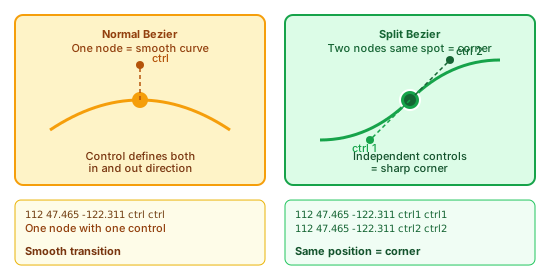
For the geometry explanation, see the split bezier section in the previous post. The consequence for linear features is worse than a visual spike. You lose type information.
Walk through this example with four nodes:
112 ... 53 102    ← Node A: type 53 (double yellow + black border)
112 ... 0  0      ← Node B: same position as A, type 0
111 ... 53 102    ← Node C: same position as A and B, type 53
111 ... 0  0      ← Node D: different position
Nodes A, B, and C share the same coordinates. If you detect the split bezier and skip the degenerate curve (correct), but also skip adding the coordinate to the output array (wrong), the type array has a gap. Node C’s type 53 never gets recorded. When the splitter processes the segment from C to D, it sees type 0 instead of type 53.
Type 0 is transparent. The line disappears.
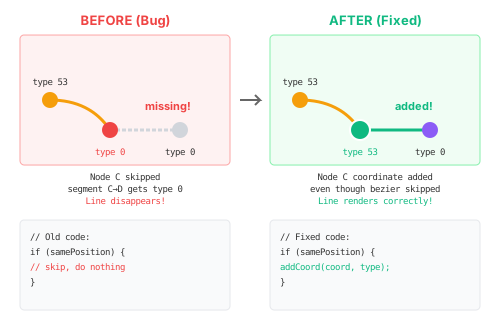
The fix: always add the coordinate, even when you skip the curve. The coordinate carries type information that the splitting algorithm needs.
// From pathParser.ts — split bezier handling
if (coordsEqual(previousPos, currentPos)) {
  // Same position: degenerate curve, don't draw it.
  // But STILL record the coordinate with its type.
  addCoord(currentPos, nodeLineType, nodeLightType);
} else {
  // Normal curve
  const points = calculateBezier(previousPos, control, currentPos);
  addBezierSegment(points, currentLineType, currentLightType,
                   nodeLineType, nodeLightType);
}
The coordsEqual check uses an epsilon of 1e-9 rather than exact floating-point equality. Coordinates that are practically the same position but differ by rounding noise should still be treated as split beziers.
Pavement edge markings
Pavements can carry line and light types on their boundary nodes. The format is the same:
110 1 0.25 0.00 Apron B
111 47.464 -122.311 0 0
111 47.465 -122.311 0 0
112 47.466 -122.310 47.465 -122.310 30 102
114 47.464 -122.310 30 102
The pavement boundary doubles as a linear feature. Instead of tracing two separate features (a polygon for the surface and a line on top of it), you define both at once. When parsing pavements, check if any nodes have non-zero line or light types. If they do, extract the boundary as a linear feature and run the same splitting logic described above.
Reference: gotchas
- Type 0 is intentional. It means “don’t paint anything here.” Don’t treat it as missing data — it is a deliberate gap in the marking.
- Lights and paint are independent. A node can have paint only (
1 0), lights only (0 102), both (1 102), or neither. You may need to render the same linear feature twice: once for paint, once for lights. - Don’t deduplicate coordinates at split nodes. Each coordinate in the output array carries a type that the splitting algorithm depends on. Remove a coordinate and you remove its type.
- Types can change mid-curve. A bezier from type 1 to type 4 is valid. Intermediate points inherit the starting type, the endpoint carries the new type. The visual split happens at the node position.
- The first bezier node has no incoming curve. If a linear feature starts with 112, record its position and control point. The curve gets drawn when the second node is processed.
Resources
- Parsing X-Plane airport geometry from apt.dat — Bezier math, control point mirroring, winding order
- apt.dat specification — Official format documentation
- xplane_apt_convert — Python library for apt.dat conversion
- X-Plane Scenery Gateway — Community airport data repository